
Downloading Driver Companion
You can download and install Driver Companion on Android or iOS devices via the Google Play/ Apple Play stores.
Google Play
To download the Android version of Driver Companion.
- Press on the Play Store icon.

- Search for ‘Driver Companion‘.

- Press on ‘Driver Companion‘ from the search results.

- Press on Install.
- Press on Open after installation is complete.
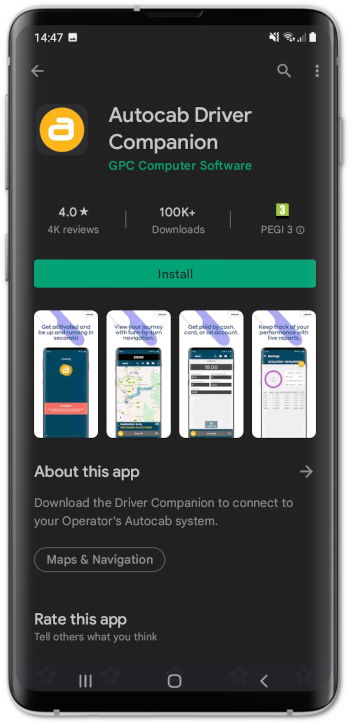

Once on Driver Companion, enter your activation code or username and password provided to you by your company.
Apple Play
To download the iOS version of Driver Companion.
- Press on the App Store icon.

- Search for ‘Driver Companion‘.
- Press on ‘Driver Companion‘ from the search results.
- Press on Get.
- Press on Open after installation is complete.


Once on Driver Companion, enter your activation code or username and password provided to you by your company.
How do I sign up to become a driver with 247 Cars?
-
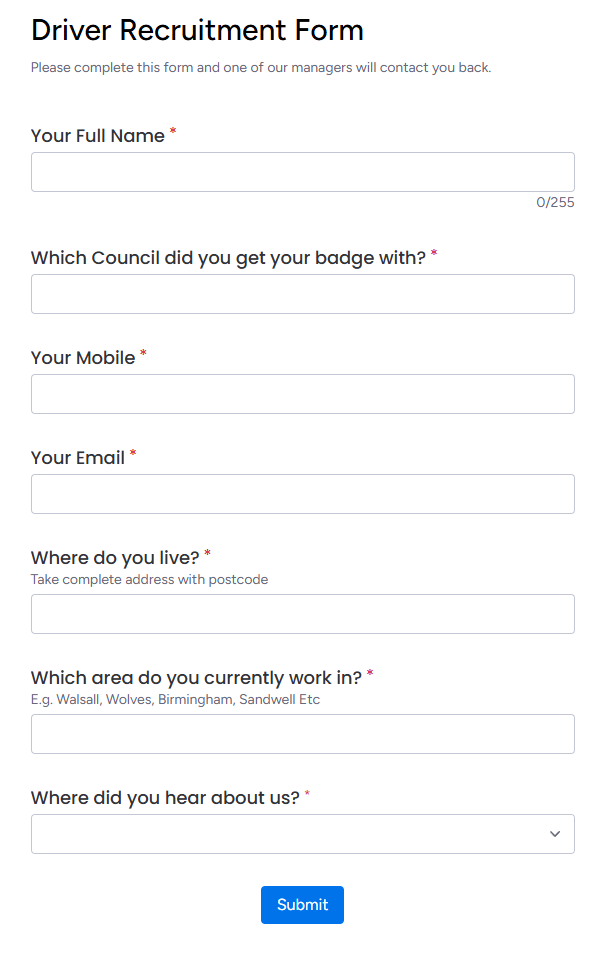
- Fill the Driver Recruitment Form (https://forms.monday.com/forms/d1575aa61b262f640a7668850aa926a5?r=use1)

- Visit the 247 Cars Office (https://maps.app.goo.gl/tZR92MZWetG89dB6A)


- Fill the Driver Recruitment Form (https://forms.monday.com/forms/d1575aa61b262f640a7668850aa926a5?r=use1)


What are the requirements to join as a driver?
Criteria for Joining as Company Driver
- Driving Licence
- Taxi Badge
- Interview Acceptance by 247 Cars
- Over 25 Years of Age
Criteria for Joining as Owner Driver
- Driver Licence
- Taxi Badge
- Vehicle Licence (Taxi Plate)
- MOT Certificate for Vehicle
- V5 Logbook of Vehicle
What type of vehicles are accepted for driving with 247 Cars?
All Licensed Vehicles from the following councils are accepted.
- Walsall
- Wolverhampton
- Staffordshire
- Birmingham
- Sandwell
- Dudley
- Ashfield
- Lichfield
- Solihull
Would your company help me to get the Taxi Badge.
Yes
Downloading Driver Companion
You can download and install Driver Companion on Android or iOS devices via the Google Play/ Apple Play stores.
Google Play
To download the Android version of Driver Companion.
- Press on the Play Store icon.
- Search for ‘Driver Companion‘.
- Press on ‘Driver Companion‘ from the search results.
- Press on Install.
- Press on Open after installation is complete.
Once on Driver Companion, enter your activation code or username and password provided to you by your company.
Apple Play
To download the iOS version of Driver Companion.
- Press on the App Store icon.
- Search for ‘Driver Companion‘.
- Press on ‘Driver Companion‘ from the search results.
- Press on Get.
- Press on Open after installation is complete.
Once on Driver Companion, enter your activation code or username and password provided to you by your company.
Handling a Job Offer

To accept or reject a job offer when it comes through:
- Swipe the screen to the right to Accept or swipe to the left to Reject. The screen background displays green for Accepting and red for Rejecting a job offer.
Note: Rejection penalties may apply depending on your company’s configuration of Driver Companion.
Before accepting or rejecting a job, you can view the booking in more detail by

After accepting a job, the process from start to finish is as easy as 1-2-3-4 simple swipes:


- Swipe right when you have arrived at the pick-up location of the passenger.

- Swipe right a second time when you’ve picked up the passenger. After this, you can begin your journey.
- When arriving at the passenger’s destination, swipe right a third time to indicate you are dropping off the passenger.
- Finally, upon the job completion, swipe right a fourth and final time to indicate the booking is complete. On this screen, you can see in-depth details about the job, such as fare, distance, waiting time in minutes, and any gratuity or extras.

Note: You can click on the ( ^ ) icon to view the booking details at each stage.
Additional Reading
You can disable the new job offer screen and return to the older look and feel in 365 Management, for information on how to do so, see our Interface Screen article.

Number Of Drivers

Rides Completed

Drivers Rating
WHAT OUR RIDER SAY